
Getting started with the app is simple:
Ensure you have the Tesco Mobile app downloaded:


Open the app and tap register
Enter your contact details
You'll get a temporary password by text
Log in and change your password for security
By registering your account, it gives you great flexibility in topping up your account, checking your balances and purchasing add-ons should you need that extra text or data boost to get you through the month.
Just follow the simple steps and you’re done, and ready to manage your account any time, any place, anywhere.
Changing your Password
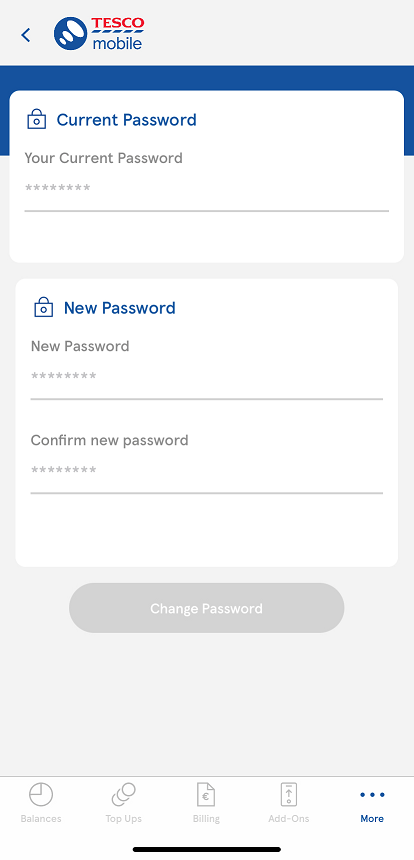
Once logged into the Tesco Mobile App , click on More and select the Change Password option.
Enter your current password followed by your new password, and then confirm your new password.
Now click on Change Password at the bottom of the screen.
Forgot your Password
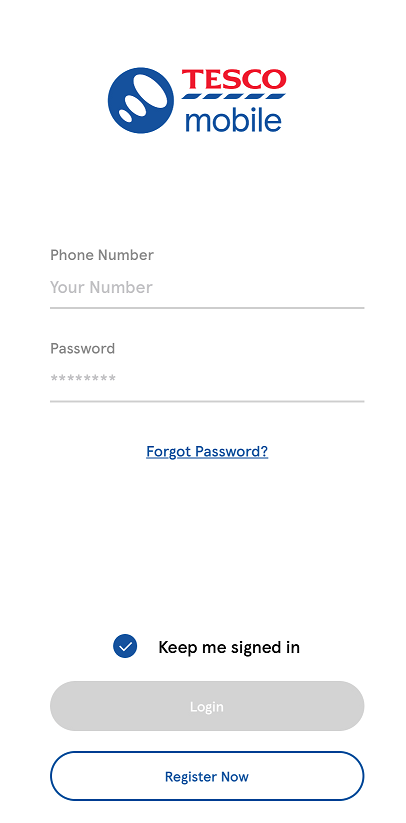
If you have forgotten or need to reset your password through the Tesco Mobile App, click on the Forgot Password link at the login screen.
You will be asked for your mobile number and your mother’s maiden name (in the case-sensitive format you entered on registration).
You will then be sent a text with a new password.
Account Locked
If your password is locked, click on the 'Forgot Password' option at the login screen.

Call Us
Choose your new handset and price plan from the great offers available from our Telesales team.
089 494 1000
Mon-Fri 9.00 am - 7.00 pm
Sat 9.30 am - 6.00 pm

